Blue Train With Friends Driving Controls, Faces, and Liveries
Master VehicleSeat driving and every customization panel.
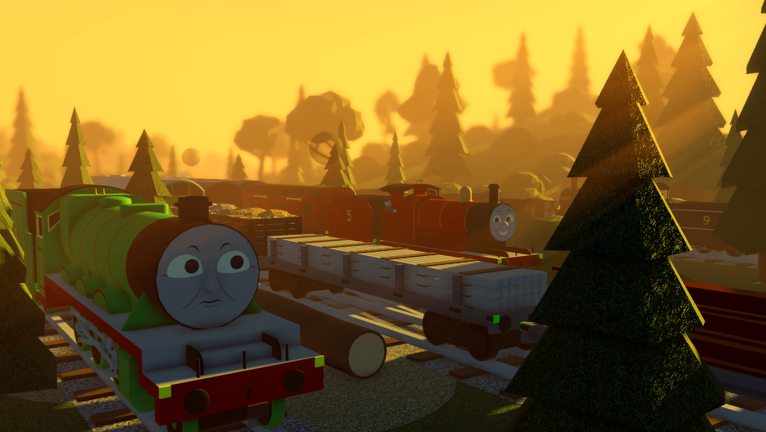
Comfortable controls turn Blue Train With Friends from a sightseeing walk into a real railway sim session. This guide covers VehicleSeat driving on PC and mobile, face and toggle UI, the livery system, Donald and Douglas tender numbers, and beginner F3X placement so you can drive and customize without fighting the interface.
If you have not spawned an engine yet, start with Getting Started. For where models live on the map, use Find Engines.
VehicleSeat driving basics
Engines use Roblox VehicleSeat behavior. Walk to a loco, sit (E or the on-screen prompt), and your avatar occupies the driver’s position. Movement input while seated drives the engine along the track. Leave the seat to become a pedestrian again.
PC
- Sit using the default interact key when the prompt appears.
- Use standard movement keys to apply throttle and direction while seated.
- Steer with care through points and curves; momentum carries you farther than you expect on long grades.
- Jump or use the leave-seat control to exit when you need to switch engines or grab a mission prop.
- Keep the camera at a height that shows buffers and platform edges — collisions are easier to avoid when you see them early.
Mobile
- Tap the sit prompt on the engine.
- Use on-screen thumb controls for driving input.
- Brake earlier than you would on PC; touch throttles are easier to overshoot.
- Rotate the camera with drag gestures before tight junctions so you can see which road is set.
- If the UI covers the track, collapse or scroll panels until you have a clear forward view.
On both platforms, if the engine does not move, exit and re-sit, try another loco, or rejoin. Occasional seat ownership glitches appear on busy servers.
Faces and expression UI
Many engines support multiple faces. Open the in-game UI while seated (or with the engine selected, depending on the current build) and scroll the panel to reveal face options. New players often miss faces because they sit below the first fold of the menu.
Cycle expressions for screenshots, roleplay, or just variety. Face changes are cosmetic; they do not alter speed. If a face fails to apply, scroll away and back, or reseat once to refresh the UI binding.
Toggles
Toggles flip optional features on the model — lamps, accessories, mechanical details, or other developer-defined switches. They live in the same scrollable UI region as faces. Explore toggles on each new engine; mission exclusives and update engines may ship with unique options.
Use toggles deliberately during multiplayer meets so your consist looks intentional. Avoid flickering toggles rapidly in others’ cameras during serious photo sessions.
Livery system
Blue Train With Friends includes a livery system so supported engines can wear alternate paints and historical schemes. Open the livery UI after sitting, browse available paints, and apply the one you want. Examples called out by the community include distinctive Henry skins and alternate Thomas paints as more engines gain livery support over updates.
Not every locomotive has multiple liveries on day one of a patch. If the livery panel is empty, the model may not be wired yet — check Updates when a “livery system added” style patch notes drop. The embedded video on this page shows a livery-focused update overview useful for recognizing the panel layout.
Liveries pair well with mission unlocks: after you claim BR Rebecca or Furness Edward via Unlock Missions, inspect whether alternate paints or related toggles appeared.
Donald and Douglas tender numbers
The Scottish twins support identity tweaks beyond faces. Players set tender numbers by interacting with the tender buffers or running board (press or click the back buffer / board area). This lets you distinguish Donald from Douglas clearly during double-headers on the Little Western.
Steps that usually work:
- Unlock the twins through McBunn’s mission — see Unlock Donald & Douglas.
- Spawn or sit on the twin whose tender you want to change.
- Leave the cab if needed so you can reach the tender interactable.
- Press the tender buffer or running board prompt until the number updates.
- Reseat and confirm the look from a distance.
If nothing happens, you may be clicking the engine buffer instead of the tender, or the mission unlock may be incomplete.
Couplings, consists, and station work
While exact coupling tools vary by update, good station craft stays the same: stop aligned with the platform, leave space for other drivers, and announce reverses in chat on busy servers. When running multiple engines for screenshots, agree who moves first so VehicleSeats are not stolen mid-pose.
Practice stopping at Knapford before attempting precision mission steps that punish sloppy driving. Lead Mines approaches deserve extra caution because of reported invisible track on the left side — details in Lead Mines.
F3X basics for creative placement
F3X building tools were added for creative placement. They let you move and position props for scenes, yards, and sandbox play. Beginner guidelines:
- Learn move, rotate, and resize on a scrap prop away from the running line.
- Keep builds clear of platform edges and junction noses unless the server agrees to a closed line.
- Do not bury engine spawns under giant creations.
- Ask before editing someone else’s F3X work.
- Remember that creative tools are optional — pure drivers can ignore F3X entirely.
Mini-update videos that mention F3X (including the overview linked from Getting Started) help you see which tools shipped in recent builds.
Camera and performance tips
- Pull the camera out on long engines so you can see both ends in yards.
- On mobile, reduce clutter by closing unused UI before mountain or mine runs.
- If frames drop in decorated Halloween areas (Suddery Junction extensions, seasonal props), lower Roblox graphics temporarily.
- After applying liveries and faces, take one test lap to ensure you did not leave a toggle in an awkward state (for example lamps that clip oddly in tunnels).
Controls checklist for new drivers
- Sit and move ten studs without hitting a buffer.
- Stop at a platform mark.
- Exit, walk, and reseat successfully.
- Scroll UI → change a face.
- Try at least one toggle.
- Open liveries on a supported engine.
- If you own the twins, set a tender number once.
- Optionally place one F3X prop off the mainline, then delete or park it neatly.
Common control problems
Engine ignores input. Reseat; confirm you are in the VehicleSeat, not standing on the running plate.
Cannot find faces. Scroll the UI; they are often below the first options.
Livery will not stick. Engine may lack support, or you need to reapply after a rejoin.
Tender number unchanged. Click the tender buffers/running board specifically after unlocking Donald & Douglas.
F3X feels overwhelming. Ignore it until you can drive cleanly; creative tools are not required for missions or badges.
Mastering controls makes every other guide easier — missions, engine hunts, badges, and seasonal exploration all assume you can stop where you mean to stop. Keep this page bookmarked whenever a UI patch rearranges panels.
Frequently Asked Questions
Quick answers for Blue Train With Friends players.
How do I drive on mobile?
Tap the sit prompt on an engine, then use on-screen movement controls. Brake earlier than on PC and adjust the camera before junctions.
Where are face options?
Open the engine UI and scroll; faces and toggles often sit below the first visible rows of the panel.
How do I change Donald or Douglas tender numbers?
After unlocking the twins, press or click the tender buffers or running board interactable until the number updates.
Do I need F3X to play normally?
No. F3X is for creative placement. Driving, missions, and badges work without building tools.